LAST CHECKED:
November 12, 2026

Emil Rindell

Jonas Bryntesson

Henrik Andersson
PUBLISHED:
November 12, 2026
Emil Rindell
Jonas Bryntesson
Henrik Andersson
November 12, 2026
When you look at the history tree on the left—also known as the Scene Browser—all models in the 3D scene are displayed in a long list. By default, the value "User Name " is used as the name for each " part " and "assembly."
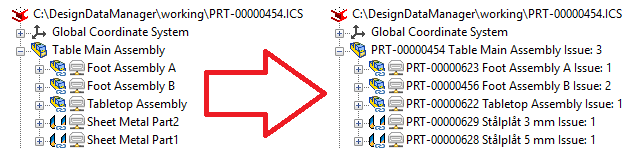
For example, in many places, a combination of “Part Number,” and “Description” is used, where some also choose to display the “Issue” value from “ DDM.” Some assign a Swedish label to “User Name” and an English one to “Description” (or vice versa), which allows you to choose which one to display on, for example, a 2D drawing (since “Part Number” is usually a "universal value"). Others use “Description” as a sort of label for “raw material,” etc.
In the image above, it says "Issue: 1" after the number and name, which corresponds to the "Issue" (revision) value in DDM and which reads and displays the revision value from Part/Assembly Properties directly in the tree.
Options
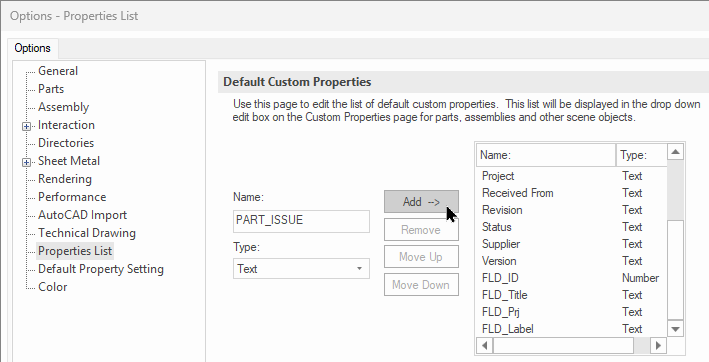
Go to Options, Properties List.
Enter PART_ISSUE and click the Add-> button, as shown in the image below:
Then go to Parts and scroll to the bottom of the page.
There, you enter or "retrieve" the set of values that you specifically want to see in the tree.

You can also add "free text" before the brackets. For example, you can add "Issue: " before the value to clarify what kind of character it is. But of course, that takes up a little extra space!
The caption in the image above reads:
<Part Number><Description> Issue: <PART_ISSUE>
NOTE: This applies only to your computer; others in the company can, in principle, use a completely different set of values. We recommend that you create a uniform set of values that everyone in the company uses.