Looks like you don't have ESC button on your device
Choose one of the following options
trial versionHas a license

Looks like you don't have ESC button on your device
Choose one of the following options
trial versionHas a licenseLAST CHECKED:
October 22, 2026

Emil Rindell

Jonas Bryntesson

Henrik Andersson
PUBLISHED:
September 17, 2026
Emil Rindell
Jonas Bryntesson
Henrik Andersson
September 17, 2026
Version 2027 introduced several new options designed specifically to account for the lines in the sketch for extruded shapes and the guide curve for swept shapes.
Download the 3D scene shown in the video.
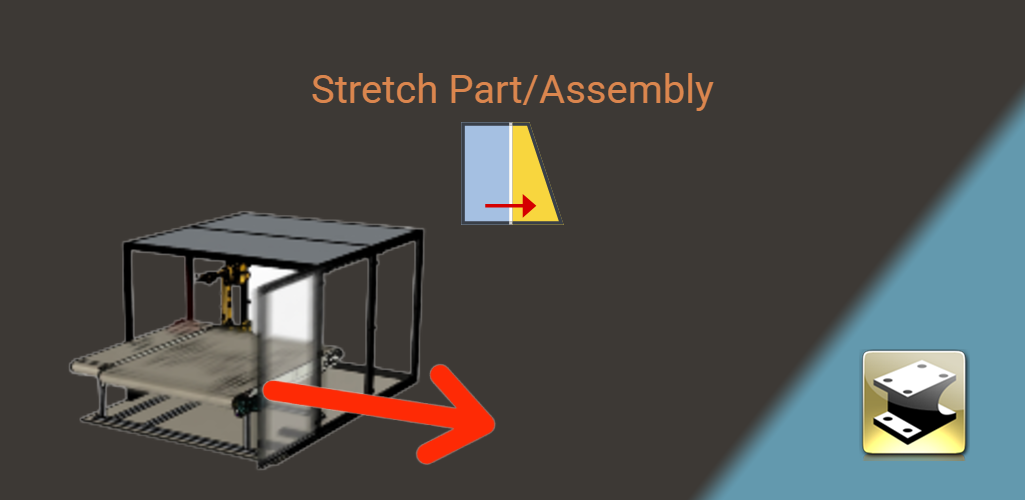
With the command Stretch Part/Assembly you can instantly extend or shorten multiple different parts at the same time, even if they are part of completely different assemblies.
The function does not create a separate, editable " feature " layer beneath the parts; instead, it directly affects the features it intersects and modifies their dimensions in real time. Furthermore, the command applies only to the parts that are selected when it is run and therefore displays a "grayed-out" inactive icon when nothing is selected in the 3D scene.
You can find "Stretch Part" / " Assembly " under the tab Feature along with other commands that have a direct effect on selected parts and are therefore not saved as a separate, editable feature beneath them in the tree structure.

Read our previous post about Stretch Part/Assembly.
Watch an English-language video about Stretch Part/Assembly on IronCAD Academy.
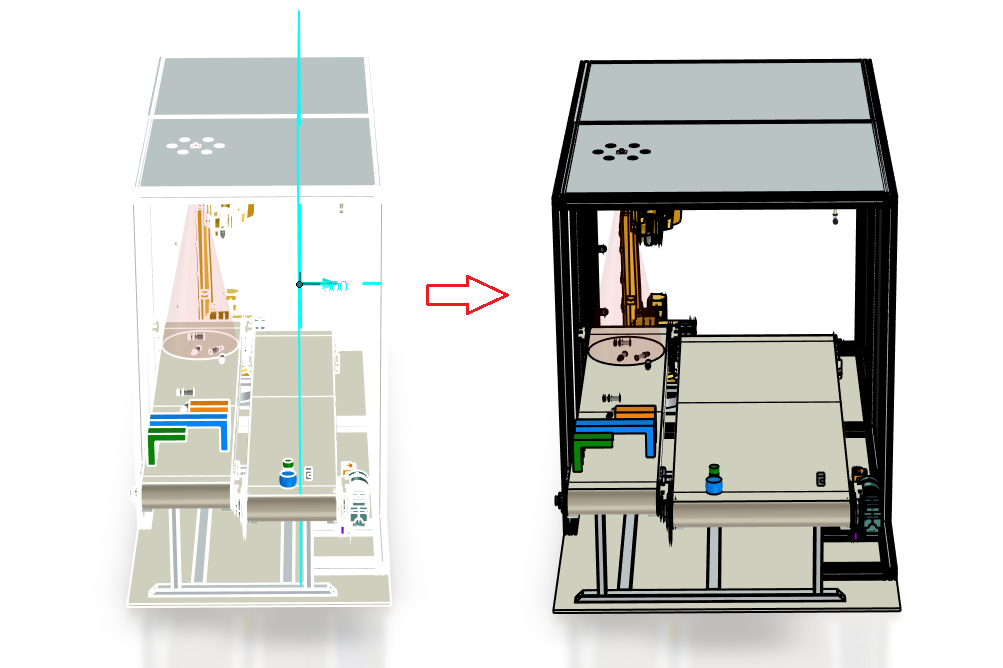
Instead of creating large, complicated setups with rules and associations between all parts—which can easily lead to spending more time troubleshooting than making quick changes if you can’t follow the rules to the letter—you can create a section plane where everything in front of the section will be moved and everything intersected by the section will be extended. Anyone who has used 2D CAD and the Stretch tool will easily recognize this principle.
On the robot cell on the left, the stretch plane has been applied throughout the entire assembly to quickly extend it by 500 mm. The result is shown on the right.

Answer: Here we publish tips, guides, news and solutions for those who work with IRONCAD and Design Data Manager (DDM). The blog covers everything from basic functions to advanced workflows, helping you to optimize your design work. You'll find examples of smart shortcuts, practical instructions, solutions to common problems, and best practices for product design, mechanical design, and product data management.
Answer: Our guides and tips are designed for both beginners and experienced CAD users. They are aimed at designers, engineers and project managers who want to work more efficiently with IRONCAD and DDM, improve the design process, reduce mistakes and save time in product development.
Answer: We regularly publish new articles when the software is updated, when new features are introduced, or when our users ask for solutions to specific problems. The blog is therefore a reliable source for keeping up to date and getting tips that make everyday CAD work easier.
Answer: Many of our instructions and tips work in multiple versions, but we clearly indicate if an article applies to a specific version. We strive to make the content useful for older versions as well, and also provide recommendations on how to adapt workflows to the version you are using.
Answer: Absolutely! If you can't find the solution in the blog, you can contact our technical support via solidmakarna.support. Our experts will help you with everything from installation and configuration to advanced features in IRONCAD and DDM, so you can solve problems quickly and efficiently.
Answer: Yes! We appreciate suggestions from our users. If you have questions, tips or want us to address a specific issue in IRONCAD or DDM , please contact us via our contact form and we will prioritize relevant topics in future posts.
Answer: The blog contains, among other things:
Practical step-by-step guides to help you use IRONCAD and DDM more effectively.
Productivity and workflow tips for faster design and construction.
Solutions to common problems encountered by users in CAD programs.
Updates and news on new features, versions and improvements.
Best practices for data management and project organization in DDM.
Answer: All tips and guides are directly applicable in daily work. For example, you can use shortcuts and smart features in IRONCAD to speed up modeling, structure files better in Design Data Manager, or follow our step-by-step solutions for specific problems that often come up in design projects.
Answer: We strive to ensure that all guides and tips are relevant to the latest versions of IRONCAD and DDM. We also clearly mark when a post applies to an older version, so you always know if the instruction is directly applicable to your system.
Answer: Yes! Many of our users share the articles with colleagues and use them as internal training materials. The blog is a great complement to formal training and helps teams learn features faster, avoid mistakes, and standardize workflows in IRONCAD and DDM.