Looks like you don't have ESC button on your device
Choose one of the following options
trial versionHas a license

Looks like you don't have ESC button on your device
Choose one of the following options
trial versionHas a license
Scroll down to start reading the guide
NOTE! Remember to always activate your live license first, otherwise you will get the "wrong" license on the wrong computer.
In other words, you will have your home license linked to your office workstation and the main license to your home computer. However, this is easy to solve but it requires you to export both licenses and redo your activation so that the right computer gets the right license.
If this is the case, please click here for instructions.
Also remember to put the license file for IC Mechanical on your home computer. Then use these instructions:
https://www.solidmakarna.mechanical
Licenses for other third-party add-ons such as KeyShot, Translator , etc. are not included when activating a home license.
The home licence is an "additional licence" included in an active support contract. The license is valid for the same period as the active support contract and is valid for up to 12 months. If the support contract is renewed, the licence can be activated again for another 12 months.
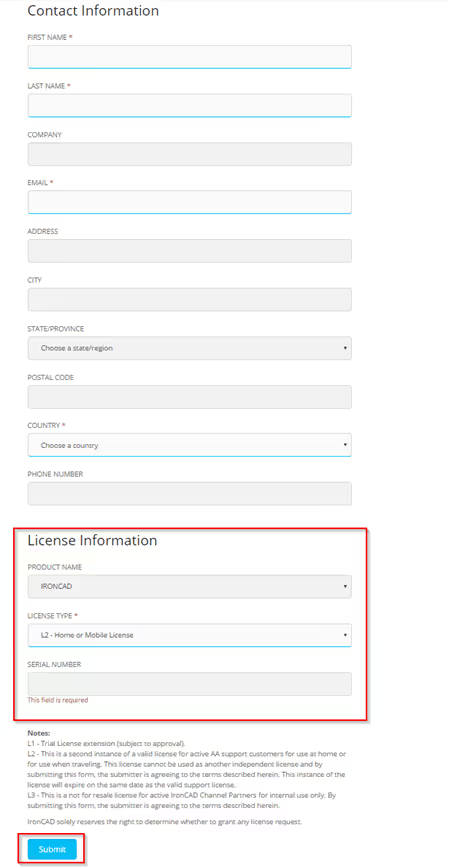
Go to: https://www.ironcad.com/licensing-and-activation/license-extension-request/
Fill in the contact information.
License information:
Product name : IRONCAD.
License type: L2-Home or Mobile License
Serial: Here you fill in the same serial number as on your license certificate. Remember to use the right serial number for the right version.
For USB dongle and software licenses, the serial number always starts with ICUS.
For software network licenses, the serial number always starts with NLUS.
Then click on Submit.
Wait for an email response from IronCAD that the license application has been accepted.
If you get an error message after the installation process is complete, it may be because you have a space in your Windows username. Try unpacking the installation file manually by following the steps below. We have written how to do this in both Windows 11 and Windows 10.
This is for Windows 11
If the path to the folder that handles "My Documents" and "Downloaded Files" etc. contains a space in your username (\Firstname_space_Password\) you need to manually unpack the installation file, otherwise an error message will appear during installation. To unzip, you can for example use WinRAR/WinZIP or preferably the easy to use and compact 7-zip: https://www.7-zip.org/
Then you can right-click on the file you downloaded and choose Show more options

Then select 7-zip followed by Unzip to "IronCAD_DCS2023SP1_SWE\

Then run the installation file itself in the new folder by right-clicking on the *.exe file and selecting Run as administrator:

This applies to Windows 10
If the path to the folder that handles "My Documents" and "Retrieved Files" etc. contains a space in your username (\Firstname_Space_Password\) you need to manually unzip the installation file, otherwise an error message will appear during installation. To unzip, you can use WinRAR/WinZIP or the easy to use and compact 7-zip: https://www.7-zip.org/
Then you can right-click on the file you downloaded and choose to unzip it into a new folder which will be created automatically.

Then run the installation file itself in the new folder by right-clicking on the *.exe file and selecting Run as administrator:

Go to Windows Start >IronCAD (CURRENT VERSION).
Right-click License Management Tool>More>Run as admin

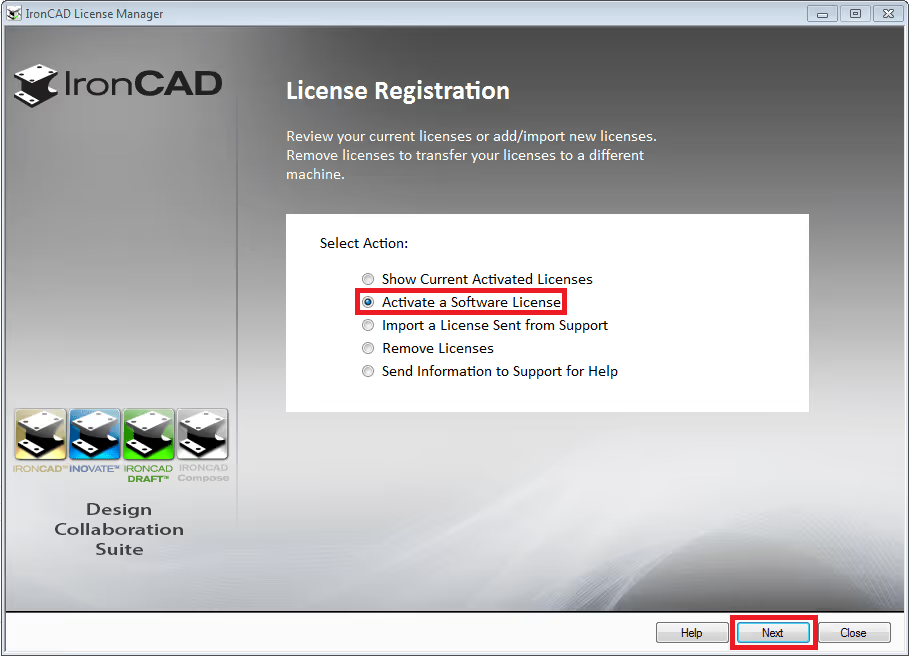
Here you choose Activate a Software License. Then click Next>
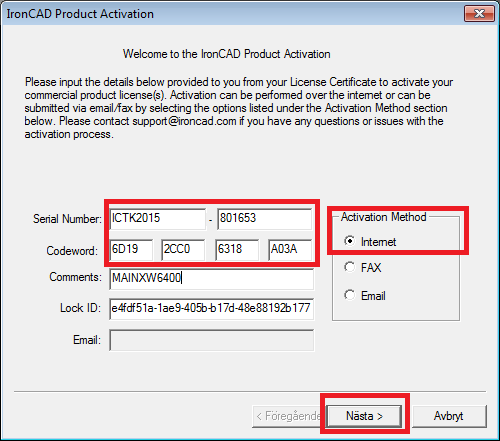
Here you fill in the information from your license certificate. For the fastest activation, we recommend the Internet as the activation method. Then click on Next>
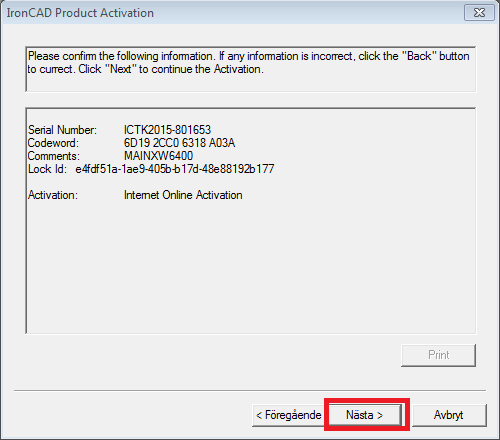
Check that you have entered your details correctly. Then click on Next>
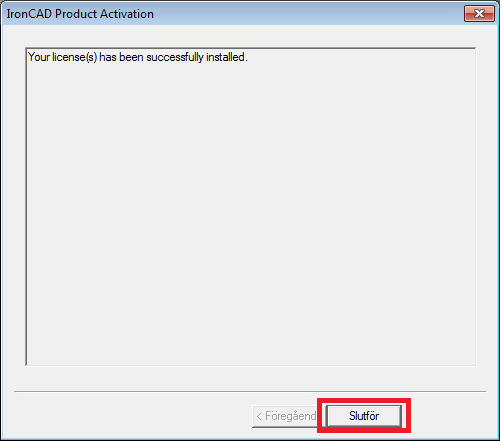
This image is displayed when the activation is complete. Now click Finish
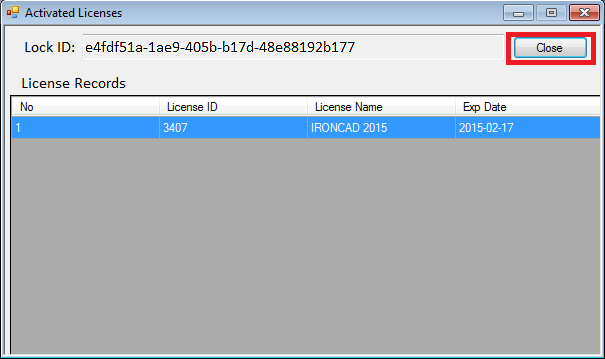
Here you can see an overview of all your licences on your computer. Click Close to finish the process.
Done!