LAST CHECKED:
November 19, 2026

Emil Rindell

Jonas Bryntesson

Henrik Andersson
PUBLISHED:
November 19, 2026
Emil Rindell
Jonas Bryntesson
Henrik Andersson
November 19, 2026
To access various commands more easily and quickly, you can assign keyboard keys to different commands in IRONCAD. Some keys are already assigned to functions in IRONCAD right after installation, such as F10 for TriBall. Here is a list of preset keyboard shortcuts in IRONCAD
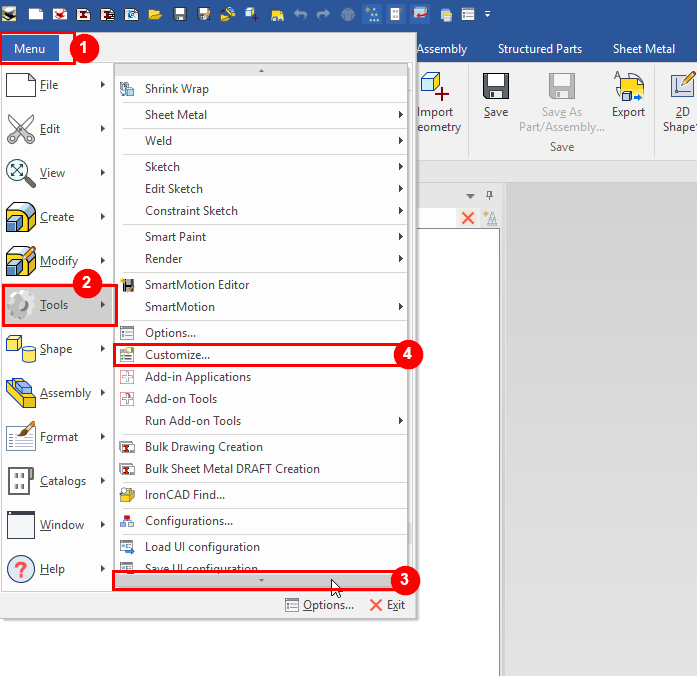
There are several ways to access "Customize." The easiest is through the menu:
1. Click Menu.
2. Click Tools.
3. Hover the cursor over the arrow at the bottom of the menu so that it scrolls down.
4. Click Customize.
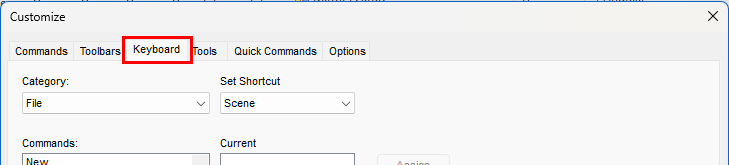
Then click the Keyboard tab.
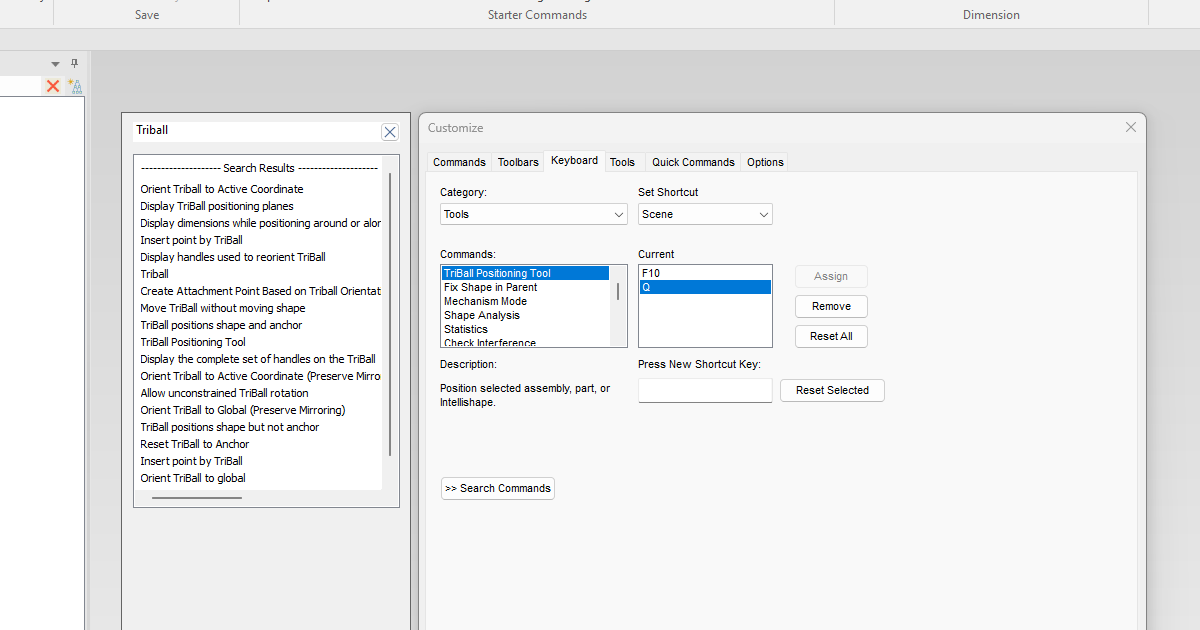
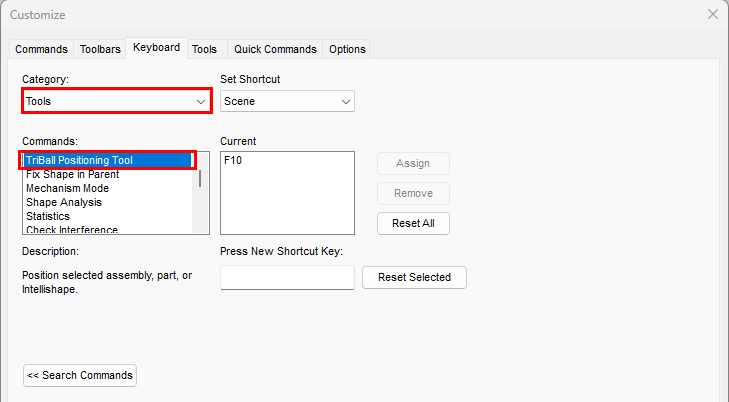
If you know which category the command belongs to, select it under "Category." Otherwise, you can search in the "Search Commands" field. In our example, the command isn't where you might expect it to be. The option to turn TriBall on and off isn't under the "TriBall" category, but under "Tools." Therefore, select "Tools" and check "TriBall Positioning Tool."
1. Click in the " Press New Shortcut Key" field.
2. Press the key combination you want to use.
3. Click Assign.
If the combination is available, it will now appear under "Current," and you're done.
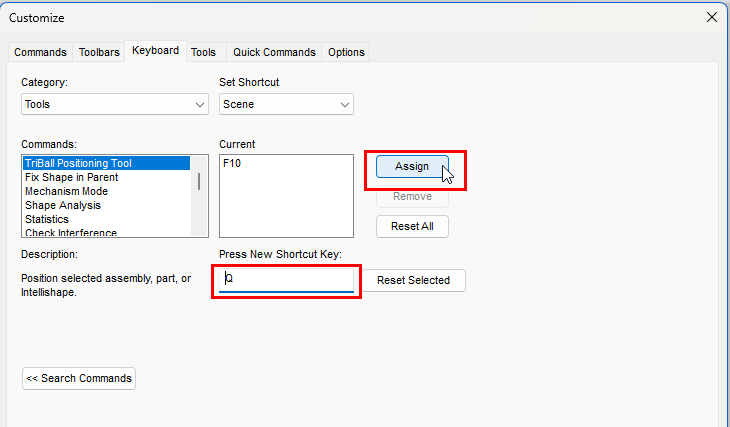
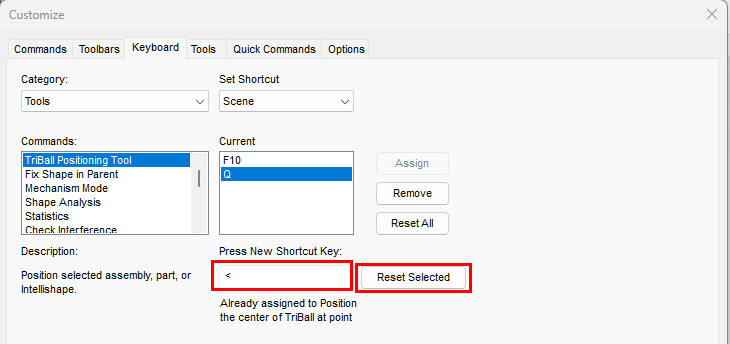
If the combination is already assigned to another function, that function will be displayed under "Already assigned to." Click " Reset Selected " to release the combination, and then assign it to the new function in the same way as described above.
To remove a keyboard shortcut, select it under " Current" and click " Remove."