Looks like you don't have ESC button on your device
Download IronCAD DCS
Choose one of the following options
trial versionHas a license

Looks like you don't have ESC button on your device
Choose one of the following options
trial versionHas a license

Emil Rindell

Jonas Bryntesson

Henrik Andersson
June 1, 2026
Emil Rindell
Jonas Bryntesson
Henrik Andersson
June 1, 2026
Download a PDF document containing these instructions.
DownloadIronCAD Collaboration Suite 2026 SP2(3.01 GB):
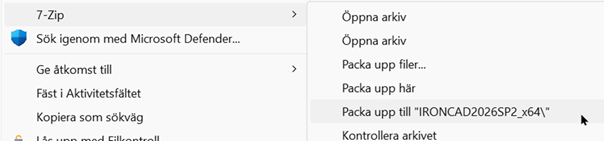
Unzip the file.
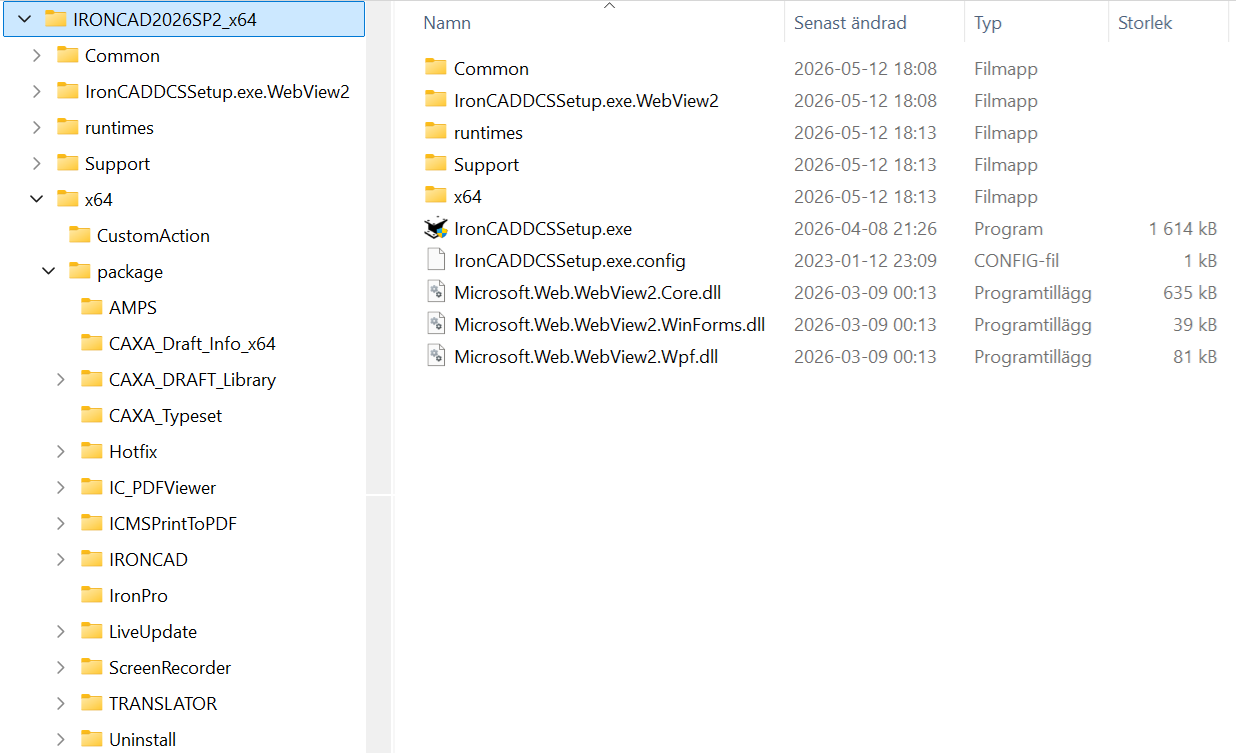
This is the file's contents and folder structure:
Download a PDF document with instructions from IronCAD :
https://www.ironcad.com/support/readme/2026/SilentInstall_IC2026.pdf
We recommend the following settings for a basic ISO-based installation:
CommandLine:
msiexec.exe /i IronCADSuite2026_x64.msi /qn
UP_DEFAULT_KERNEL=2
UP_DEFAULT_SCENE_TEMPLATE=Metric
UP_DEFAULT_DRAWING_TEMPLATE="ISO"
UP_DEFAULT_TD_TEMPLATE="ISO"
UP_DEFAULT_DRAFT_STD=2
UP_DEFAULT_PMI_STD=1
The text " IronCADSuite2026_x64.msi " should include the full path to the MSI file.
In the example above, where the installation package has been extracted, the relative path is:
..\IRONCAD2026SP2_x64\x64\package\IRONCAD
Be sure to also install the following items, as mentioned in the documentation;
- Draft Library
- IronCAD Translator
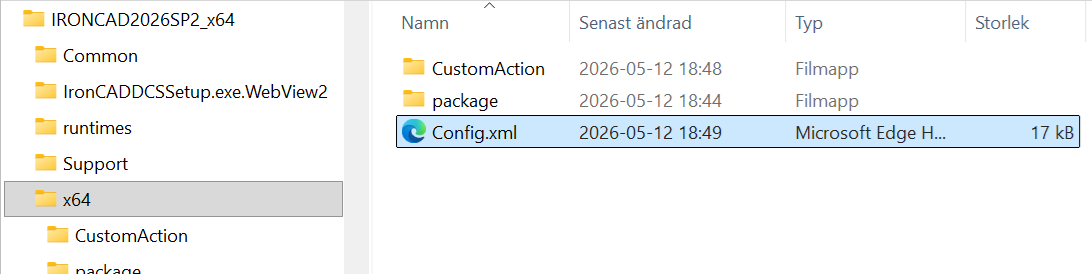
The full IRONCAD installation (and update installation) follows a process that uses a simple utility program, “IronCADDCSSetup.exe,” in conjunction with an XML configuration file (“Config.xml”), to control the rules, sequence, and options for installing multiple MSI installation packages and Microsoft redistributables.
The format of the Config.xml file should be self-explanatory to any developer familiar with MSI packages, but I’ll highlight some key points of the IronCAD Collaboration Suite 2026 Service Pack 2 below.
For IC2026SP2, the “main product” consists of the hotfix DLLs, EXEs, and other files part this “Service Pack 2” release.
Note the use of the isHotfix=”true” parameter below, which tells IronCADDCSSetup.exe that this “product” is delivering hotfix files.
In addition to copying (or replacing) the files from the “Source” to the product’s installation folder, matching the ProductCode below…
…this service pack will also need to perform a “CustomActions”:
The use of square brackets [SourceFolder] in the command (cmd) is used to identify the root of the directory structure of the extracted files.
Note from Solidmakarna this CustomActions:
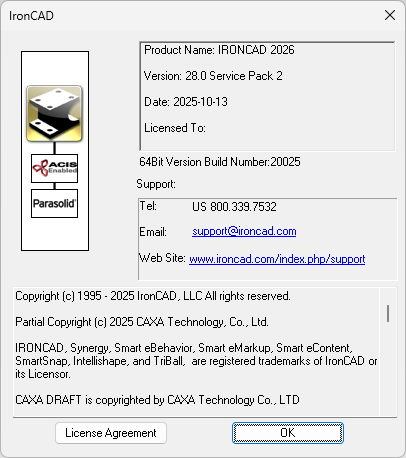
The registry file in question—regUpdateInfo_Combined-ATL.reg—contains adjustments to the Windows Registry to apply "Service Pack 2" to the software, as indicated by the following lines:
In the program's "Help, About" section, this appears on line 2 after the text "Version: 28.0"
The ChildProducts include add-ons such as the IronCAD Translator Bundle, Multiphysics for IronCAD 2026, and IronCAD Mechanical. Note that these MSI packages have already been designed to perform the correct type of update operations in the event that they detect an existing package (identified by ProductCode) already installed.
For the AMPS MultiPhysics add-on, you can simply install it using the standard MSI command and the provided ProductCode:
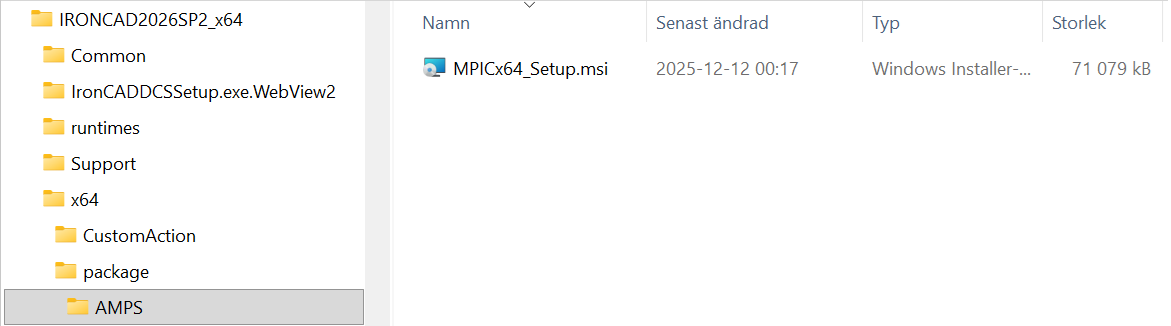
For the ad-on IronCAD Translator you ignore the *_Setup.exe files and simply use the standard MSI command with the provided ProductCode:
IronCAD PDF Viewer
For the add-on " IronCAD " PDF Viewer, you can ignore the *_Setup.exe files and simply use the standard MSI command with the provided ProductCode:
IronCAD Screen Recorder
For the add-on " IronCAD " Screen Recorder, you can ignore the *_Setup.exe files and simply use the standard MSI command with the provided ProductCode:
For the IronCAD Mechanical add-on, simply run the EXE file.
For Swedish users, this installation file must be replaced with a Swedish version. If this information in the Config.XML file is being used, IronCAD Mechanical must be replaced with an alternative as described in step 5 later in this document.
CommandLine
The CommandLine property in the Config.xml file provides additional parameters that are passed directly to the msiexec.exe program, such as /qn for Quiet and /norestart. Details can be found in any guide to Microsoft msiexec.exe
Download and install our add-on Swedish Metric Standard Customization 2026 which contains recommended settings, templates, etc.
Download and install the add-on IronCAD Mechanical 2026
Please contact us for this step and to obtain the correct license file.
The license file is valid until a specified date and must then be replaced with a new license file to ensure that all features of the add-on remain available. However, basic functions such as standard components (screws, nuts, beams, etc.) will still work even without a valid license file.
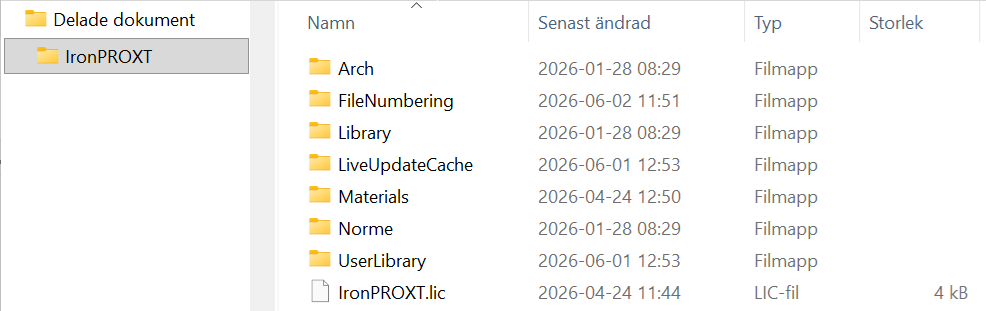
Unzip the ZIP file and place the IronPROXT.lic file in the following folder:
C:\Users\Public\Documents\IronPROXT
The final step is to ensure that the client can launch the program with a license. This is most likely a floating network license or a software license tied to the same computer.
Activation Instructions for Floating Network License
Software License Activation Instructions
If you’d like, Solidmakarna can assist with checking and testing a client once the installation package has been done and installed. By connecting remotely using, for example, TeamViewer, we can take a look together and make sure everything turned out as intended.

Answer: Here we publish tips, guides, news and solutions for those who work with IRONCAD and Design Data Manager (DDM). The blog covers everything from basic functions to advanced workflows, helping you to optimize your design work. You'll find examples of smart shortcuts, practical instructions, solutions to common problems, and best practices for product design, mechanical design, and product data management.
Answer: Our guides and tips are designed for both beginners and experienced CAD users. They are aimed at designers, engineers and project managers who want to work more efficiently with IRONCAD and DDM, improve the design process, reduce mistakes and save time in product development.
Answer: We regularly publish new articles when the software is updated, when new features are introduced, or when our users ask for solutions to specific problems. The blog is therefore a reliable source for keeping up to date and getting tips that make everyday CAD work easier.
Answer: Many of our instructions and tips work in multiple versions, but we clearly indicate if an article applies to a specific version. We strive to make the content useful for older versions as well, and also provide recommendations on how to adapt workflows to the version you are using.
Answer: Absolutely! If you can't find the solution in the blog, you can contact our technical support via solidmakarna.support. Our experts will help you with everything from installation and configuration to advanced features in IRONCAD and DDM, so you can solve problems quickly and efficiently.
Answer: Yes! We appreciate suggestions from our users. If you have questions, tips or want us to address a specific issue in IRONCAD or DDM , please contact us via our contact form and we will prioritize relevant topics in future posts.
Answer: The blog contains, among other things:
Practical step-by-step guides to help you use IRONCAD and DDM more effectively.
Productivity and workflow tips for faster design and construction.
Solutions to common problems encountered by users in CAD programs.
Updates and news on new features, versions and improvements.
Best practices for data management and project organization in DDM.
Answer: All tips and guides are directly applicable in daily work. For example, you can use shortcuts and smart features in IRONCAD to speed up modeling, structure files better in Design Data Manager, or follow our step-by-step solutions for specific problems that often come up in design projects.
Answer: We strive to ensure that all guides and tips are relevant to the latest versions of IRONCAD and DDM. We also clearly mark when a post applies to an older version, so you always know if the instruction is directly applicable to your system.
Answer: Yes! Many of our users share the articles with colleagues and use them as internal training materials. The blog is a great complement to formal training and helps teams learn features faster, avoid mistakes, and standardize workflows in IRONCAD and DDM.