

Looks like you don't have ESC button on your device
Choose one of the following options
trial versionHas a license

Looks like you don't have ESC button on your device
Choose one of the following options
trial versionHas a license
Scroll down to start reading the guide
Go to the following path:
C:\Program Files\IronCAD\**CURRENT VERSION**\bin
Locate the file WRCommute.exe and double-click on this file. WRCommute creates a unique code. This code is used to create a temporary license, and the program then activates that license.
The code is created by starting WRCommute. Then click the Save button to save this code to a file. Name the file "Company name-date" and preferably avoid special characters, no special file type is required here.

Then start your email program and create a new email. Enter this information(you can copy the text below and paste it into the email):
"Hello,
I would like a temporary license.
Software and version: XXXXXXX XXXX
Number of days: XX
Name: XXXX XXXXXXXXX
Company: XXXXXXXXXXX
"
Attach the created file "Company name-date" to the Solidmakarna at the address; support@ solidmakarna.se
If you get an error message after the installation process is complete, it may be because you have a space in your Windows username. Try unpacking the installation file manually by following the steps below. We have written how to do this in both Windows 11 and Windows 10.
This is for Windows 11
If the path to the folder that handles "My Documents" and "Downloaded Files" etc. contains a space in your username (\Firstname_space_Password\) you need to manually unpack the installation file, otherwise an error message will appear during installation. To unzip, you can for example use WinRAR/WinZIP or preferably the easy to use and compact 7-zip: https://www.7-zip.org/
Then you can right-click on the file you downloaded and choose Show more options

Then select 7-zip followed by Unzip to "IronCAD_DCS2023SP1_SWE\

Then run the installation file itself in the new folder by right-clicking on the *.exe file and selecting Run as administrator:

This applies to Windows 10
If the path to the folder that handles "My Documents" and "Retrieved Files" etc. contains a space in your username (\Firstname_Space_Password\) you need to manually unzip the installation file, otherwise an error message will appear during installation. To unzip, you can use WinRAR/WinZIP or the easy to use and compact 7-zip: https://www.7-zip.org/
Then you can right-click on the file you downloaded and choose to unzip it into a new folder which will be created automatically.

Then run the installation file itself in the new folder by right-clicking on the *.exe file and selecting Run as administrator:

We create a license from the code you sent and we email the license to you. Save the attached license file to a local folder, e.g. in a new folder directly under C:\. If the license file is zipped, make sure to unzip it first. Then start WRCommute and select the tab (1) Install Remote Authorization Code. Select the lower option (2) Get remote authorization code(s) from file.
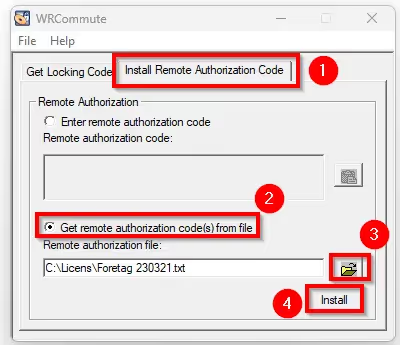
(3) Click on the Open icon at the bottom right. Locate the license file you received and select Open. Then click the (4) Install button.
This is what it should now look like when/if the temporary license is correctly activated:

Now you can start IRONCAD and use your temporary license.