Looks like you don't have ESC button on your device
Choose one of the following options
trial versionHas a license

Looks like you don't have ESC button on your device
Choose one of the following options
trial versionHas a licenseLAST CHECKED:
November 9, 2026


Emil Rindell

Jonas Bryntesson

Henrik Andersson
PUBLISHED:
November 9, 2026
Emil Rindell
Jonas Bryntesson
Henrik Andersson
November 9, 2026
Do you have a computer with both an integrated and a dedicated graphics card? If so, IRONCAD may use the integrated graphics card instead of the more powerful dedicated one. This can affect graphics performance when you're working with larger or more complex 3D models.
This problem can occur on both laptops and desktop computers. In this guide, we'll show you how to check and change this setting in Windows 11.
Many modern computers, especially laptops, have two graphics cards:
Windows normally automatically selects which graphics card to use for different programs. Sometimes, however, you need to change this manually to ensure that IRONCAD uses the dedicated graphics card.
Follow these steps in Windows 11:
C:\Program Files\IronCAD\IRONCAD 20xx\bin.Restart IRONCAD for the change to take effect.
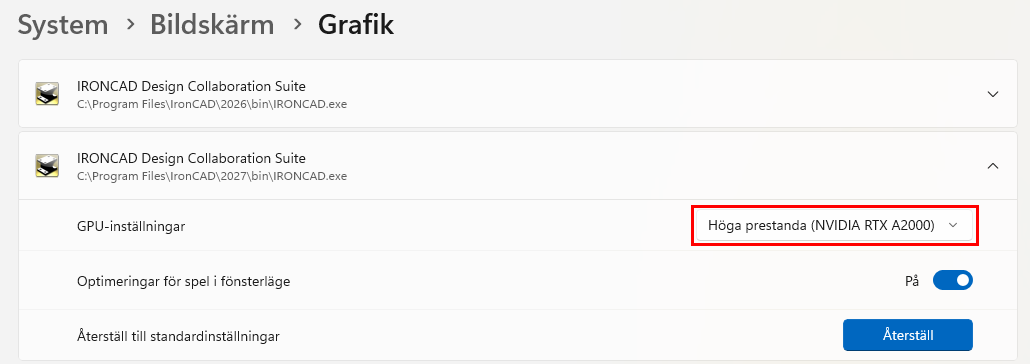
If your computer has an NVIDIA graphics card, you can also check the setting in the NVIDIA Control Panel.
Please note that modern versions of Windows control the selection of the graphics processor and may override the settings in the NVIDIA Control Panel. We therefore recommend that you make the change through Windows graphics settings first.
If you have an AMD graphics card, the corresponding setting can be found in AMD Software under " Graphics," but even there, the Windows setting takes precedence.
Would you like to check if the change worked?
If you're using a dedicated graphics card, you should see, for example, "GPU 1 – 3D," depending on how the graphics cards are numbered in your specific computer. When " IRONCAD " is not updating, the column may be empty, so feel free to work on the model in the meantime.
Tip! You can also go to the Performance tab in Task Manager to see which graphics cards are installed and how heavily they're being used.
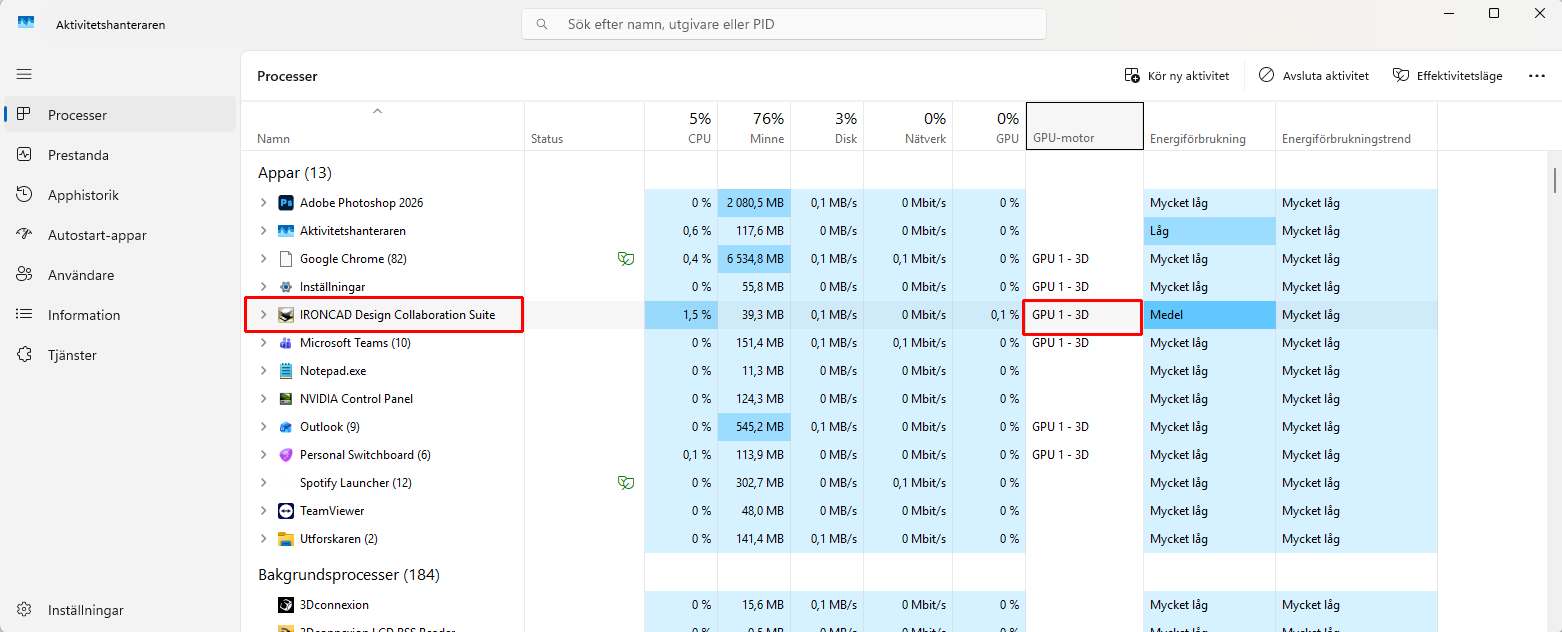
Choosing the dedicated graphics card does not automatically mean that all the workload is shifted from the CPU to the graphics card. IRONCAD uses both the CPU and GPU for different tasks. If you are still experiencing issues with graphics performance, it may be worth checking the graphics engine settings under IRONCAD Options. Learn more about the various 3D graphics options at IRONCAD.